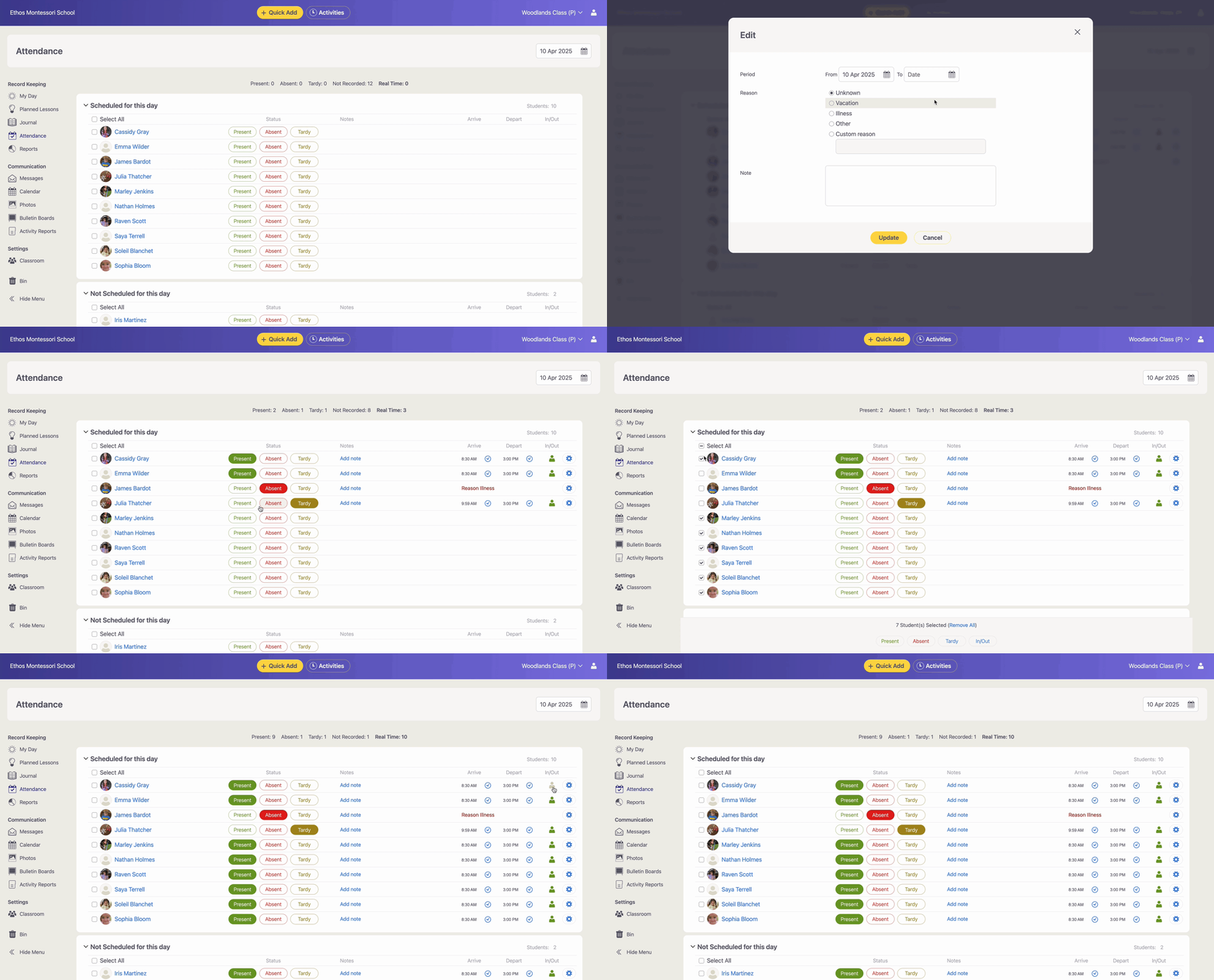
The attendance feature in Montessori Compass enables teachers to accurately and efficiently record student attendance daily. This article explains how to mark attendance, update arrival and departure times, and add relevant notes.
Recording Attendance
Attendance can be recorded individually for each student by clicking the desired status next to their name, or in bulk by selecting multiple students at once and then selecting the desired status at the bottom of the screen. Teachers can mark each student as:
- Present: The student is in school on time.
- Absent: The student is not in school.
- Tardy: The student arrived late.
Arrival and Departure Times
Default arrival and departure times are automatically entered for each student based on the classroom's start and end times. However, teachers can:
- Click the clock icon next to the arrival or departure time for each student to update it to the exact time (current, local) they arrived or left the school.
- Manually adjust times at any point to reflect the accurate time a student arrived or left school, if different from the default times.
Adding Reasons and Notes
Teachers can include:
- Absence Reasons: Indicate if the absence is due to illness, vacation, family emergency, etc.
- General Notes: Record any relevant information regarding attendance, such as a reason for late arrivals or early pickups, visible health check upon arrival, etc.
Real Time Count
In addition to their daily attendance status, next to each student is a clickable icon to track whether they are physically "In" or "Out" of the classroom. For example, a student could be present at school but went to the office to have medication administered (or any other reason or location within the school) and are not currently in their classroom. This In/Out feature allows the teacher to track who is physically in the class at all times and will display the "Real Time Count" at the top of the Attendance page.